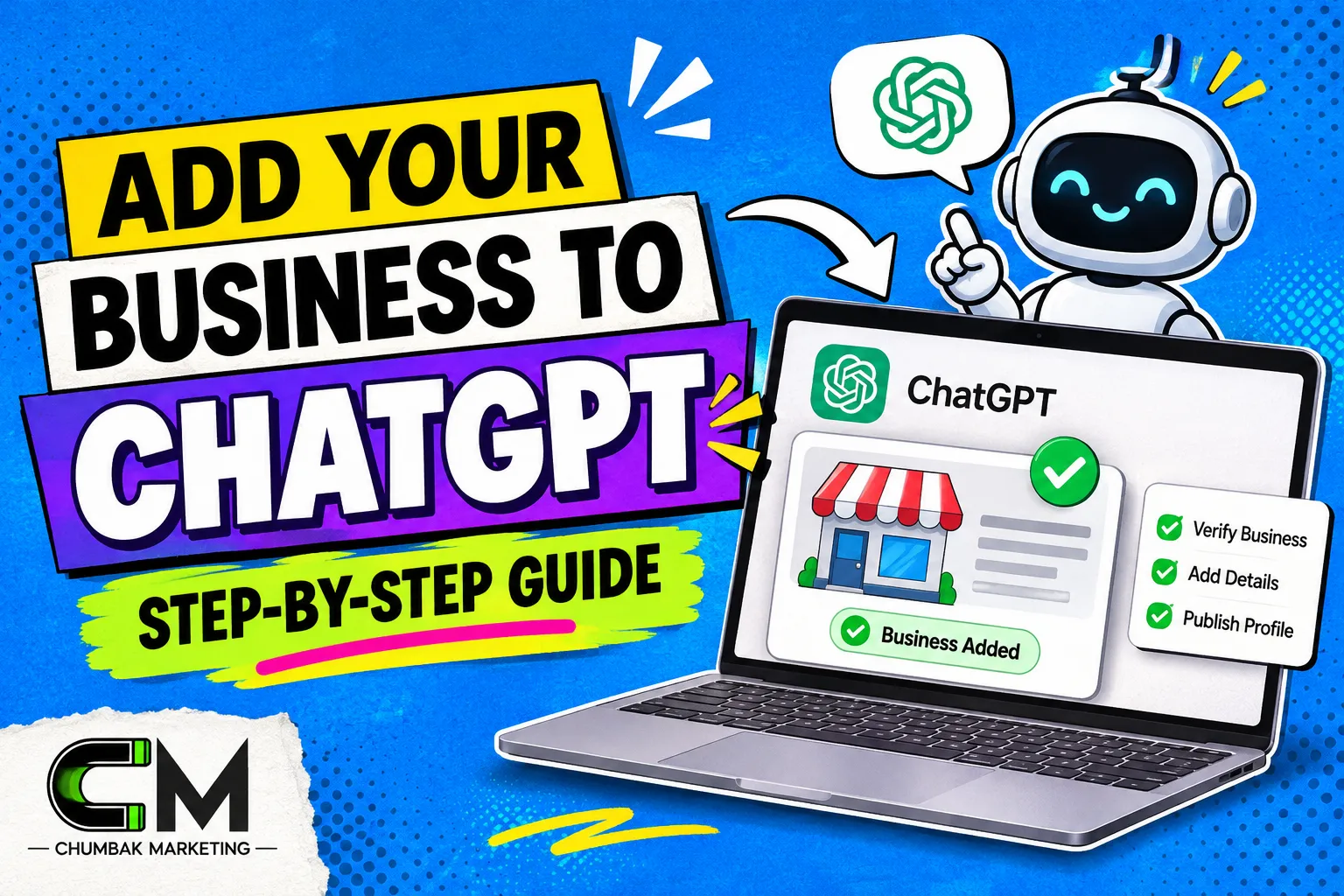
How to Add Your Business to ChatGPT: Step-by-Step Guide
Quick answer: You can add your business to ChatGPT through Business Hub at chatgpt.com/business-hub. Sign in, search for your business, verify that it is yours (business phone, business email, a DNS record or Shopify), then confirm your identity with Persona. It is free at launch and still in beta. Claiming gives you control over your details and some data. It does not promise more recommendations.
OpenAI launched Businesses in ChatGPT in beta on 10 November 2026. For the first time, a business owner can claim a profile inside ChatGPT, fix wrong details and see how often ChatGPT points people to their website.
If you have used Google Business Profile, the idea will feel familiar. The process is different, though. You verify your website, you pass an ID check, and online-only businesses are allowed.
This guide explains each step in plain words. It also covers who can apply, what to prepare, what you get after approval, and what the tool does not do.
What Is ChatGPT Business Hub?
ChatGPT Business Hub is OpenAI's dashboard for businesses. OpenAI describes it as a place to claim your business, keep your information current and see how you show up in ChatGPT.
Business Hub has four parts:
- A business profile. People can open it when your business appears in an answer.
- Editable details. You can update your description, category, website, logo, cover photo and delivery and return policies.
- Insights. You see mentions, website clicks and discovery topics.
- Business Agent. This is a separate chat that answers customer questions from your product and policy details. For now it is limited to eligible ecommerce and online service businesses in the US.
Retailers can also upload product feeds with prices and availability.
Also Read : What Is AEO? A No-Jargon Guide for Beginners
Why Should Business Owners Care?
OpenAI says about 1.2 billion people use ChatGPT every week. Some of them ask it who to buy from, what a company offers and whether a business can be trusted.
ChatGPT can already describe your business, whether you claim it or not. If it uses an old address, a wrong service or a name from before your rebrand, a customer may see that. A claimed profile lets you supply the right facts yourself.
There is a second reason. Google and Microsoft do not show click numbers in their AI reports. Business Hub does show website clicks from ChatGPT, which gives you a new number to track.
Who Can Claim a Business Listing in ChatGPT?
Eligibility depends on the type of business and where it is based. Here is the picture at the time of writing, based on OpenAI's pages and early walkthroughs.
| Business Type | Can You Claim Now? |
|---|---|
| Online business with a website | Yes, through the website option |
| Service business (agency, consultant, clinic website) | Yes, as a website business |
| Local shop or restaurant in the US | Existing listings only |
| Local shop or restaurant outside the US | Not yet |
| Existing OpenAI Enterprise customer or advertiser | Claim through your OpenAI representative |
What about India? Online businesses with a website can start the process. Gaurav Tiwari, an Indian marketer, created a draft profile from India and saw India listed in the ID step. However, he had not yet received an approval decision when he published his guide. So Indian businesses can apply, but approval timing is still unproven.
If you run a physical shop in India, you cannot add a new local listing yet. OpenAI says more markets will follow.
What to Keep Ready Before You Start?
Collect these items first. It saves time, and one verification method runs on a timer.
- A ChatGPT account that will manage the profile. Use a work account, not a personal one, so teammates can be added later.
- Website access. You need DNS access for the TXT record method, or help from the person who manages your domain.
- Business details. Public name, legal name, trading name if different, and your business type.
- Addresses. A physical address and a legal registered address if different. The form does not accept P.O. boxes.
- A tax or registration number in the format the form asks for. Check the country and the field label before you type.
- A government ID and a phone with a camera for the Persona check.
- A short description. Early users report a limit of about 300 characters.
- Delivery and return answers. The form asks for these even for service businesses.
Before you begin, ask ChatGPT a few questions about your business. Note every wrong answer. That list tells you what to fix.
Also Read : Our Proven 44 On-Page SEO Checklist for Higher Rankings in 2025
How to Add Your Business to ChatGPT: Step by Step?
These steps follow the path for a business with a website, which fits most Indian companies. The order of screens can change as OpenAI updates the beta.
Step 1: Open Business Hub
Sign in to ChatGPT. Open Business Hub from the sidebar, or go to chatgpt.com/business-hub. The first screen shows a search box and a note that continuing means you accept OpenAI's Businesses in ChatGPT Terms.
Step 2: Search for Your Business
Type your business name. If a matching listing appears, select it and start a claim. If nothing matches, choose the option to create a new profile.
Search matches business names, not website addresses. So search by the name customers know you by.
Step 3: Choose How Customers Reach You
Business Hub asks whether customers use your business at a physical location or through a website. Choose the website option if you sell or serve online.
In Search Engine Journal's test, the physical location path for a new business led to a waitlist. The website path went straight to domain verification.
Step 4: Verify That the Business Is Yours
OpenAI offers up to four methods, and you use the ones shown for your business:
- Business phone: choose text or an automated call, then enter the code.
- Business email: request a code and enter it.
- Website domain: add a TXT record to your DNS, then select Verify domain.
- Shopify store: connect your store and approve the permissions.
The domain method is often the safest choice if you control DNS. It does not depend on which phone number or email OpenAI holds for you.
Copy the record type, host and value exactly as shown. In one early test the record expired after 30 minutes. So open your DNS panel before you request it. DNS changes can take a little time, so wait a few minutes and then select Verify.
Step 5: Pick a Category and Write a Description
Choose a category from OpenAI's list. The list matches category names only, so you may not find an exact fit. For a marketing company, early testers picked "Marketing agency" and then saw related suggestions.
Write your description with care. OpenAI says ChatGPT may share these details in relevant conversations. So use the words your customers use. For example, name your service, your city and who you help.
Step 6: Add Contact Details and Answer the Policy Questions
Phone and email are optional. The delivery and return questions come next. Service businesses find them odd, but they appear in the profile preview.
Pick the answers that match your real terms. ChatGPT can repeat them to a buyer. For a service business, "no delivery" and "returns not accepted" are often the honest choices.
Also Read : 3-Month SEO Strategy Using Google Search Console Data
Step 7: Save the Draft
Business Hub saves your profile as a draft. The same screen may offer advertising credit or a paid ChatGPT plan. You do not need either to continue. Check any credit terms before you plan around them.
Step 8: Verify Your Identity With Persona
Persona is the identity service OpenAI uses. You select Verify, accept a consent screen, pick the country of your government ID and finish the check on a phone camera.
Read the consent screen. In one walkthrough, it said Persona stores account information for up to 7 days and biometric information for up to 30 days. Check the current wording on your own screen.
Step 9: Wait for OpenAI's Decision
OpenAI reviews the claim and emails you. Review time varies. Search Engine Journal reported an almost instant result. Others report waits of a few days.
When you create a new profile through Persona, approval publishes it automatically. There is no separate publish button. So review every detail before you submit.
A blue check appears after OpenAI approves your identity verification. Claiming alone does not add it.
Step 10: Manage Your Profile
After approval you can edit your details, invite teammates, read insights and, if you sell products, connect a product feed. OpenAI reviews changes before they go live.
Also Read : How Leading Digital Agencies Optimize 11 Domain-Level Ranking Factors in 2025?
What You Can Do After Approval?
- Invite admins. From the business overview, select Invite and add an email address. Each person uses their own ChatGPT account. You can also give your agency access.
- Read insights. Mentions, website clicks and discovery topics cover the past 28 days.
- Update your facts. Fix your description, category, logo and policies when anything changes.
- Add a product feed. Retailers can use Shopify, a CSV or a hosted file. OpenAI's feed specification currently targets the US.
A "mention" has a narrow meaning. For an online business, ChatGPT must reference your website. A brand name alone does not count. A click means someone clicked a link in a supported ChatGPT screen. It does not confirm a visit or a sale.
How Is ChatGPT Business Hub Different From Google Business Profile?
| Point | ChatGPT Business Hub | Google Business Profile |
|---|---|---|
| Built for | Online businesses with a website, plus some US local listings | Local and service-area businesses |
| Online-only businesses | Accepted | Listed as ineligible by Google |
| Verification | Phone, email, DNS or Shopify, followed by a Persona ID check | Methods selected by Google, such as phone, email, video or mail |
| Reports | Mentions, website clicks and discovery topics | Searches, calls, directions and more |
Google Business Profile still matters for local search. Business Hub does not replace it. It adds another place where your business facts live. If you need help with the Google side, see our Local SEO Services.
What ChatGPT Business Hub Does Not Do?
Be realistic about the limits:
- It does not guarantee higher placement. OpenAI says claiming does not promise more visibility or sales. ChatGPT still makes its own recommendations.
- It does not override other sources. OpenAI's policy says profiles can include information from other sources.
- It does not show prompts. You see grouped topics, not what people typed.
- It does not show competitors or rankings. There is no share of voice in this beta.
- It cannot be undone easily. Only a draft can be deleted. According to early reports, OpenAI support cannot delete or hide a published profile.
Also read the terms before you accept. They grant OpenAI wide rights over the details you submit. If your business has legal or licensing concerns, ask a lawyer to read them first.
Common Mistakes to Avoid
- Using inconsistent details. Your name, address and phone number should match your website, Google Business Profile and social pages.
- Submitting before the facts are ready. A new profile can publish on approval.
- Stuffing keywords into the description. It reads badly and OpenAI's policy bans misleading claims.
- Ignoring the policy questions. Wrong delivery or return answers can reach customers.
- Treating the claim as the whole plan. ChatGPT still draws on your website and the wider web.
Also Read : Quick SEO Fixes: 20 Tips to 3x Your Website Traffic in Just 5 Minutes
How Chumbak Marketing Can Help?
Claiming the profile takes under an hour. The harder work is making your website and your other listings clear enough for AI tools to describe you correctly. That is the focus of our GEO Services and AI SEO Services.
We help businesses prepare their details, tidy up conflicting listings, write pages that answer real customer questions and track what ChatGPT sends back. If you would like a second pair of eyes before you submit, talk to our team.
FAQs About Adding a Business to ChatGPT
Is ChatGPT Business Hub free?
Yes, claiming is free at launch. You do not need an advertising account or an enterprise plan. OpenAI has not ruled out charging later.
Can I add my business to ChatGPT without Shopify?
Yes. Shopify is one route. You can also verify with a business phone, business email or a DNS record.
Can Indian businesses claim a ChatGPT listing?
Online businesses with a website can begin the process. Physical shops outside the US cannot claim yet. Approval for Indian companies was still unproven in early guides, so check Business Hub for the latest status.
How long does verification take?
It varies. One early tester saw near-instant approval. Others report a few days. Pending claims can be checked from the business overview.
Will claiming my business make ChatGPT recommend me more?
Not on its own. OpenAI says claiming does not guarantee higher placement. It gives you control over your details and access to data.
Do I need DNS access?
Not always. DNS is one of up to four methods. If someone else manages your domain, ask them to add the TXT record.
Can I delete my profile later?
You can delete a draft. Early reports say support cannot delete or hide a published profile.




Leave a comments: